 Prompt Pie
Add a Skill
AI skill management starts here — import existing skills onto your canvas from a public GitHub repo or your own machine.
You don't have to build every skill from scratch. Add a skill brings existing skills straight onto your canvas - paste a public GitHub link or drop a SKILL.md from your computer, preview what's inside, and pick what to import.
Each skill you import becomes a skill piece on your canvas, with its full SKILL.md and any bundled files preserved so you can read, edit, download, or share it.
Importing adds a skill to your Prompt Pie canvas. When you're ready to use it in a local AI tool, download or copy its SKILL.md and add it to that tool's skills folder — see Agent Skills for where each tool looks.
Ways to start
There are three ways to open the importer:
- On an empty canvas, click Add a skill.
- From the header, click + Add Skill at any time.
- Drag and drop a
SKILL.mdfile or a skill folder anywhere on the canvas.
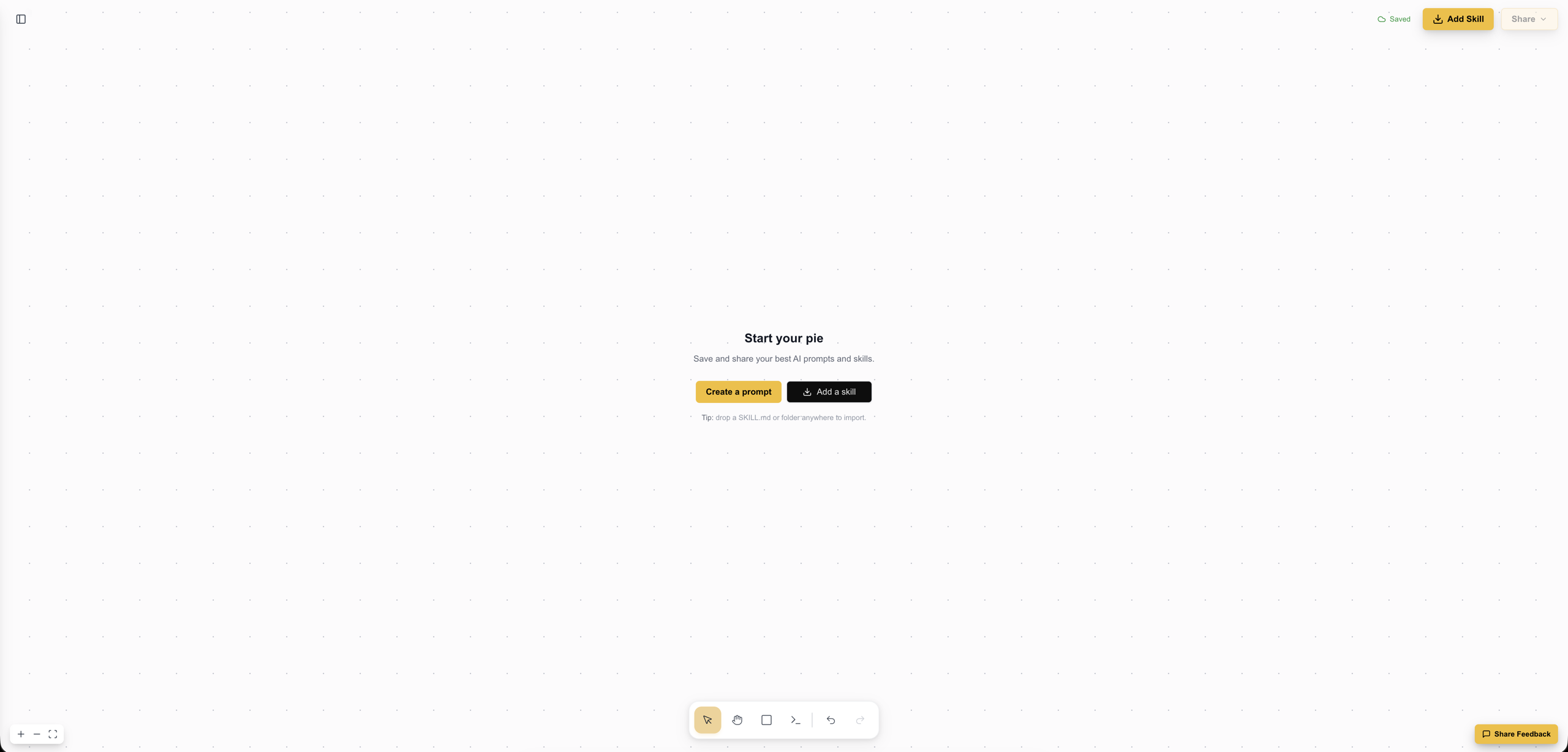
Importing a skill
Choose a source
Paste a public GitHub URL, pick one of the Popular Skills, or drop a local file.
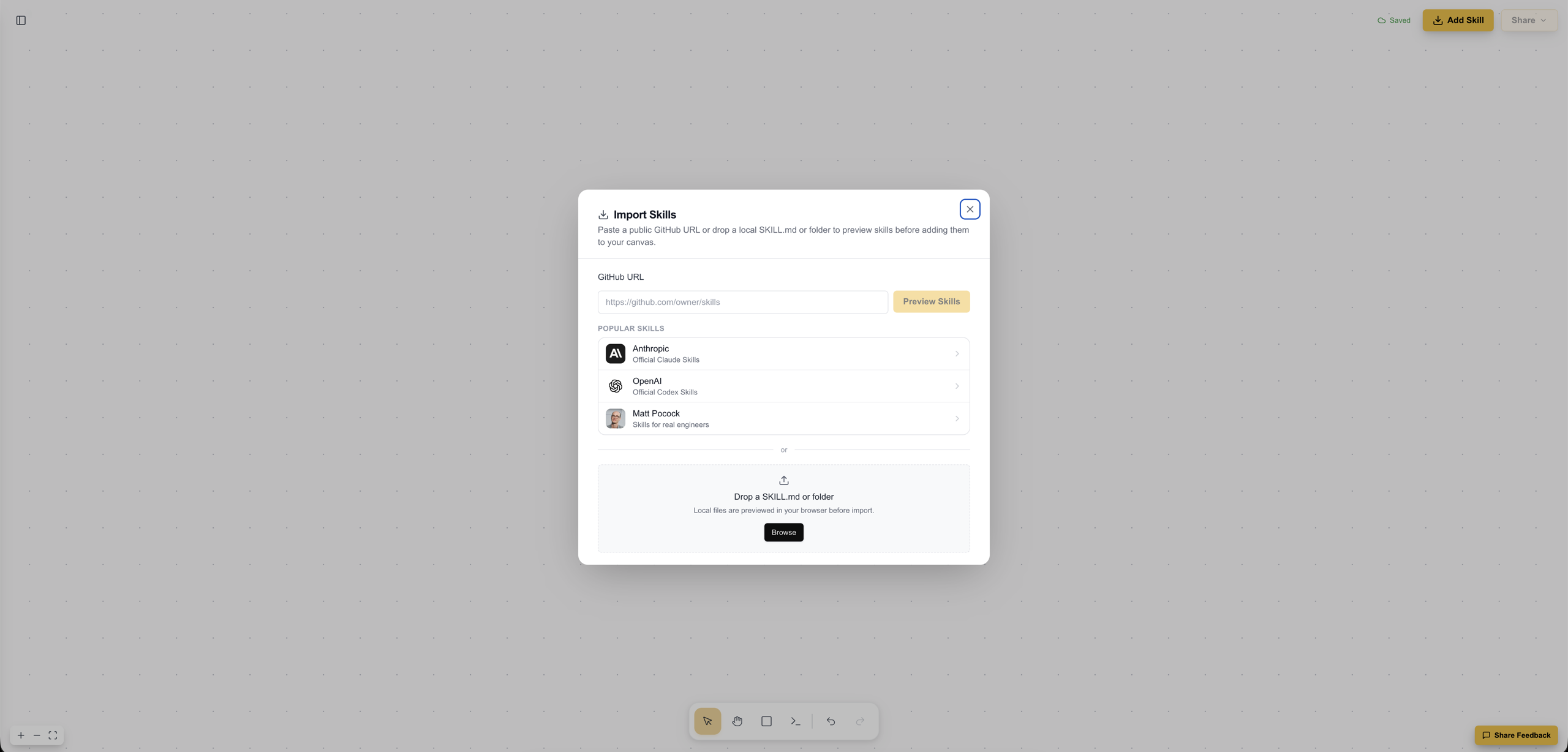
GitHub - point at a repo, a folder, or a single SKILL.md:
| Source | Example |
|---|---|
| Repo | https://github.com/owner/skills |
| Folder | https://github.com/owner/skills/tree/main/skills/pptx |
| Single skill | https://github.com/owner/skills/blob/main/skills/qa/SKILL.md |
Popular Skills - curated, ready-to-import sources so the importer is never blank:
- Anthropic - Official Claude Skills
- OpenAI - Official Codex Skills
- Matt Pocock - Skills for real engineers
Local - drop or Browse a SKILL.md, a skill folder, or a .zip / .tar / .tgz archive. Local files are previewed in your browser before anything is added.
What isn't supported. Private repos, GitHub profile URLs (like github.com/owner), and Gists are rejected before preview. Prompt Pie reads public GitHub content only and never uses your GitHub credentials.
Preview and select
Prompt Pie scans the source and lists every SKILL.md it found. Nothing is added to your canvas yet.
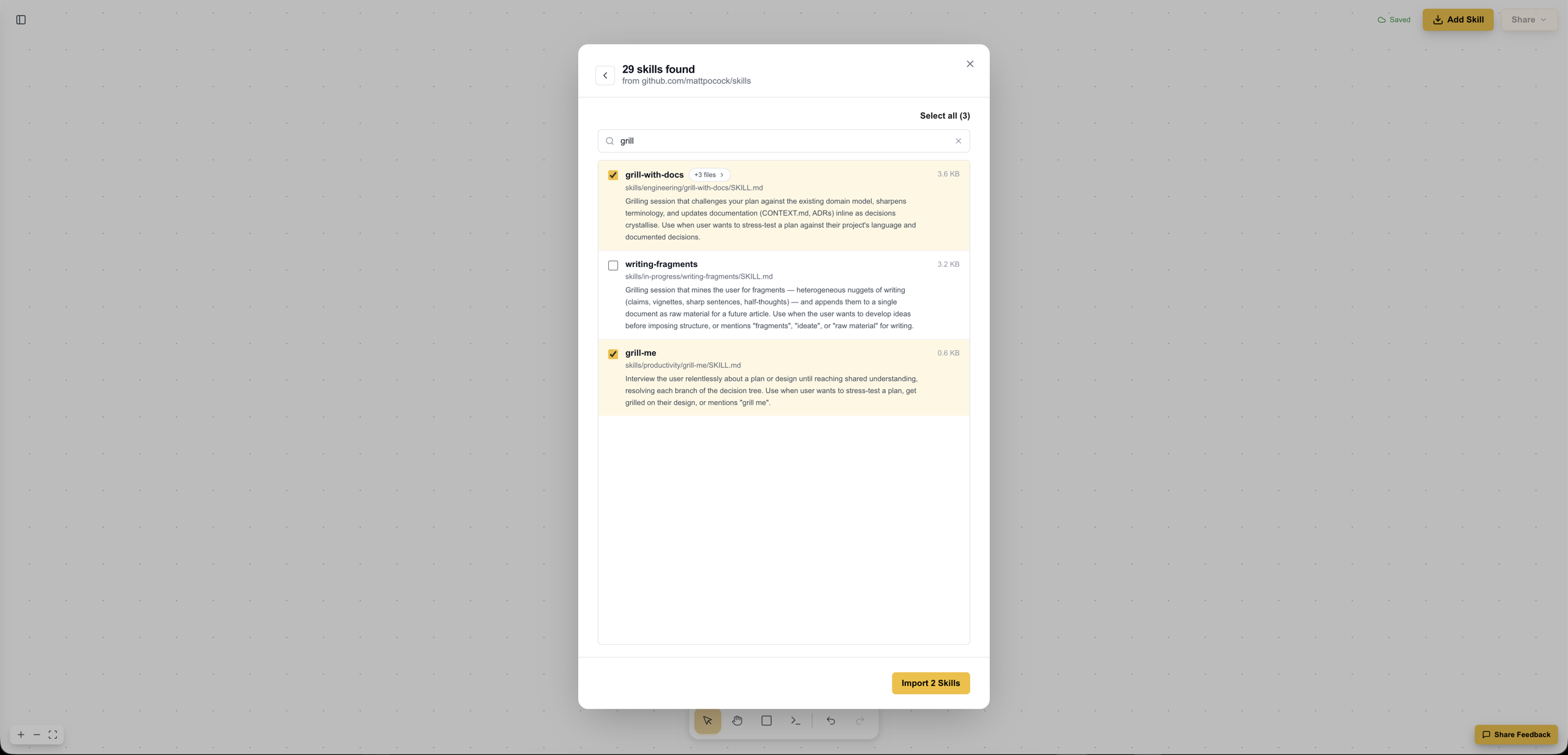
Each row shows the skill's name, path, size, and a short description. From here you can:
- Select the skills you want, or use Select all.
- Search to filter a long list - your selection is kept even when rows are filtered out.
- Expand the +N files badge to see a skill's bundled files (references, scripts, assets) before importing.
- Spot a large badge on heavier skills.
For big, deeply-nested skills, the preview splits the bundle into To import (the SKILL.md plus the files it references) and Not imported (a compact folder tree that links back to GitHub). You always import the skill's real working set without dragging in megabytes of generated files.
You can import up to 50 skills at once. A single skill is selected for you automatically.
Import to your canvas
Click Import Skills and each selected skill drops onto the canvas as its own skill piece, laid out in a tidy grid and added as a single undoable step.
Every imported piece keeps the raw SKILL.md as its source of truth, so you can edit it on the canvas and still download, copy, or share it as a spec-compliant skill. A footer notes where it was imported from.
The Skill Inspector
Expand an imported skill to open the Skill Inspector - a read view for everything that came with it.
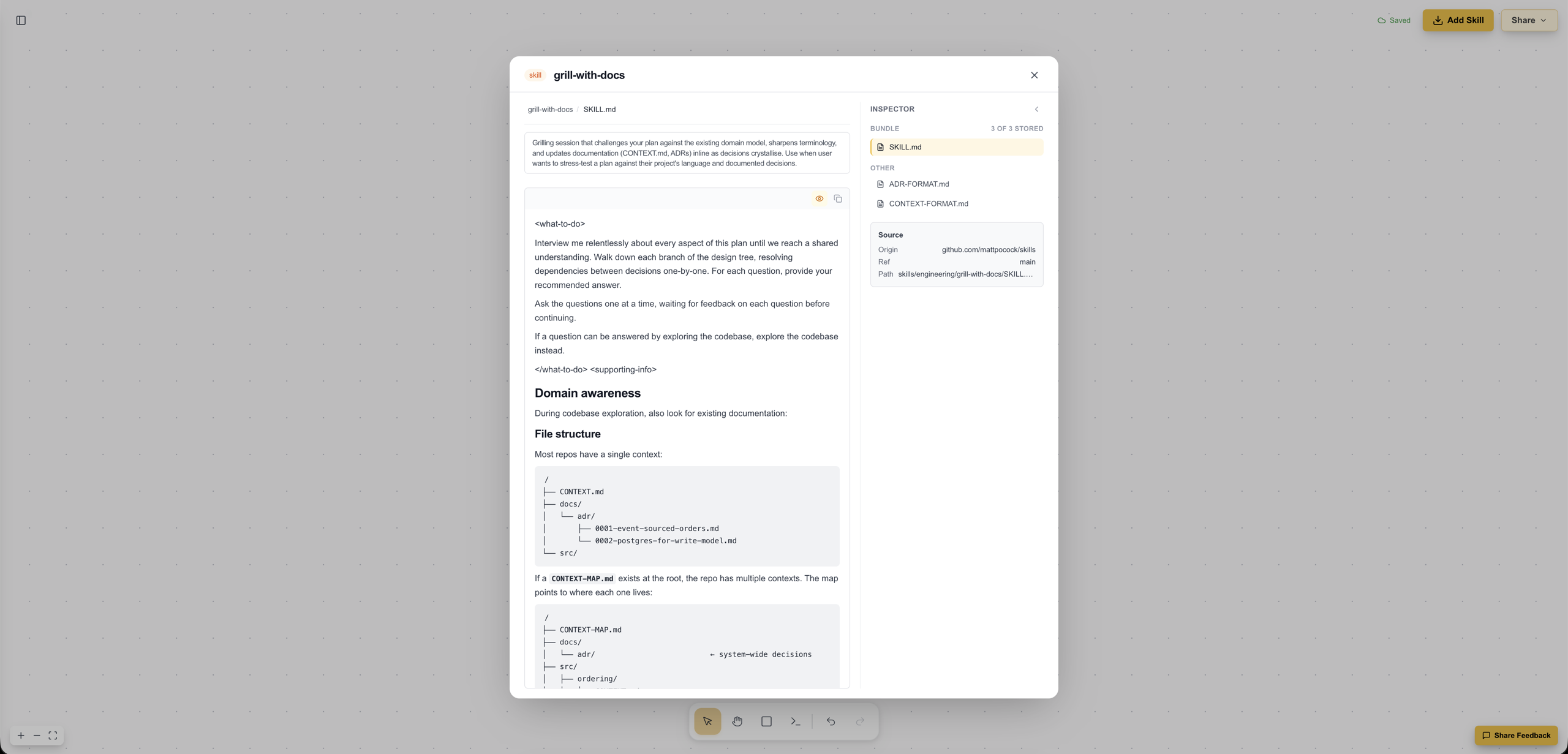
- Rendered
SKILL.mdon the left, with the bundled files listed alongside it. - Files, grouped by role: Bundle (with an "X of N stored" count), References, Scripts, Assets, and Other. Relative links in the skill navigate between bundled files.
- Source - the origin repo, ref, and path, with Open on GitHub.
- Metadata parsed from the skill's frontmatter.
Scripts are stored inert. Prompt Pie never runs, installs, or follows commands from an imported skill. Script files are kept as text so you can read them - nothing more.
Is it safe?
Importing a skill only ever reads and displays content. Specifically, Prompt Pie:
- Reads public GitHub content only - no private repos, OAuth, or access tokens.
- Never executes scripts or install/setup commands from imported skills.
- Previews local files in your browser before anything is added.
- Fetches GitHub content server-side with size caps, timeouts, and rate limits.
- Scans imported text for risky patterns - secrets, hidden or bidirectional characters, and shell or package-install commands - and surfaces them as warnings.
Use a skill in your AI tools
Importing puts a skill on your canvas; using it locally is one extra step:
- Import adds the skill to your Prompt Pie canvas so you can organize, edit, and share it.
- To use it in a tool, download its
SKILL.mdor copy its contents, then add it to the tool's skills folder yourself. Browsers cannot write directly to your local skills folders.
Want the underlying format? See Agent Skills for the SKILL.md spec that every imported and exported skill follows.